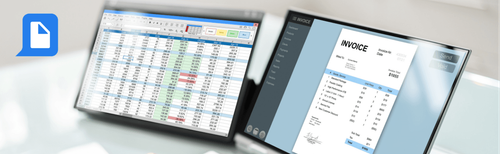
Start with supported invoice XML and review the assembled PDF package.
Hybrid invoice creation · The source data comes first
Your billing system has approved invoice data, but the recipient needs a hybrid invoice: readable pages with structured XML inside. The first decision is whether to generate the readable invoice from the data or preserve a matching existing design.
Provide suitable CII invoice XML for a supported profile. If preserving a PDF design, supply the corresponding PDF and review the reported content comparison before accepting the package.
Start with the result you need
Confirm the recipient’s required format
Identify the standard version, profile and receiving process. Check that the current tool supports the chosen input.
Supply the approved XML
Use a suitable export from the authoritative invoicing system. Arbitrary XML or a PDF-only invoice is not the same input.
Create and inspect the hybrid file
Request the supported creation operation. Read the validation findings and inspect both the rendered pages and content-match status.
Prompt to copy
Create a hybrid invoice from this supported CII XML using its declared profile where supported. Generate the readable invoice from the structured data. Report validation findings and return the PDF for review. Do not invent missing values or claim that the invoice has been delivered to the recipient.
What to look for in the result
Planning guide; actual supported profiles and reports require current-tool verification.
Input choice
Review focus
Supported XML only
The rendered invoice expresses the approved source values.
Supported XML plus matching PDF
The preserved design and XML content agree within the reported comparison scope.
Unsupported or invalid source
Resolve the source issue instead of treating the package as ready.
Watch the workflow
Create a hybrid invoice from source XML Insert a current recording showing the supported input, profile, returned PDF and report.
Review before you move on
Confirm invoice number, seller, buyer, currency and totals.
Read warnings and the exact validation scope.
Investigate a partial or mismatched PDF/XML comparison.
Use the recipient’s required submission route after acceptance.
Questions before you start
Can I use UBL XML?
Do not assume it is accepted by a CII-based creation route. Confirm the exact supported input with the current tool.
Can I retain my invoice branding?
A supported preserve-design route may accept a corresponding PDF, but content comparison can be incomplete for arbitrary layouts. Review the result carefully.
Recent PDF Capabilities
How pdfAssistant Batch Processing Scales Workflows to Thousands of Files
How pdfAssistant Workflows Work: Build Once, Run Forever
How pdfAssistant AI Studio Works: Instant Document Tasks in Plain Language