
Jun 26, 2026
How pdfAssistant AI Studio Works: Instant Document Tasks in Plain Language
Convert, summarize, or generate PDFs instantly. No configuration needed.
Not every document task needs a saved automation. Sometimes you need to summarize a contract, extract the key terms from an NDA, convert a report to PDF/A, or generate a fresh document from a description. These are one-off jobs. Setting up a full Workflow for each of them is more than the task requires.
AI Studio is the pdfAssistant workspace built for exactly these situations. It is the conversational, ad-hoc execution layer of the platform: the place you go when you need something done right now, on a single document, without any configuration.
What is pdfAssistant AI Studio?
AI Studio is pdfAssistant's intuitive, conversational interface for immediate, one-off document tasks. Simply describe what you need in natural language, and the AI Assistant handles the entire process and delivers quick, reliable results. It provides access to the full library of 40+ document operations, the same ones available in Workflows, with no setup required.
Key Facts
- No setup required: describe your task in plain language and get results immediately
- 40+ document operations: the same full operation library available in Workflows
- Three execution modes: inquiry (analyze), action (modify/convert), and generation (create from scratch)
- Secure by default: files auto-deleted within 24 hours, never used for AI training
- No third-party uploads: documents are processed within the pdfAssistant platform only
- Single-session scope: designed for one-off tasks, not recurring automations
- Workflow handoff: any task you repeat regularly can be saved as a Workflow for reuse
How AI Studio Works
AI Studio is the default view when you open pdfAssistant. There are no menus to navigate, no operation to select before you start. You open the tab, describe what you need, and the AI determines the appropriate operation and executes it.
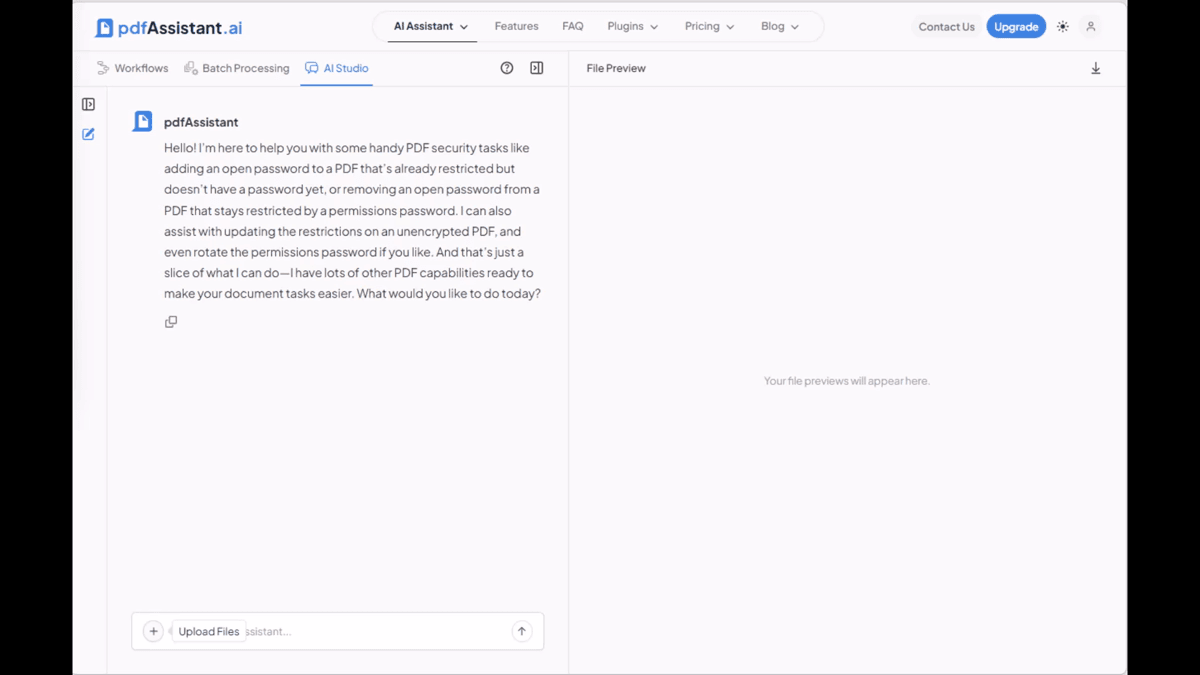 The AI Studio tab. The AI greets you and describes what it can do. Type your task or upload a file to get started
Step 1: How Do You Open AI Studio?
Navigate to pdfAssistant and select the AI Studio tab. AI Studio is the default interface. No additional navigation required. The message input field is active immediately.
Step 2: How Do You Upload a Document or Start a Generative Task?
Click the + icon next to the message field to upload a file, or simply describe what you want to create without uploading anything. AI Studio accepts both existing documents for processing and open-ended generative requests. Supported input formats include PDF, Word, Excel, PowerPoint, images, and more.
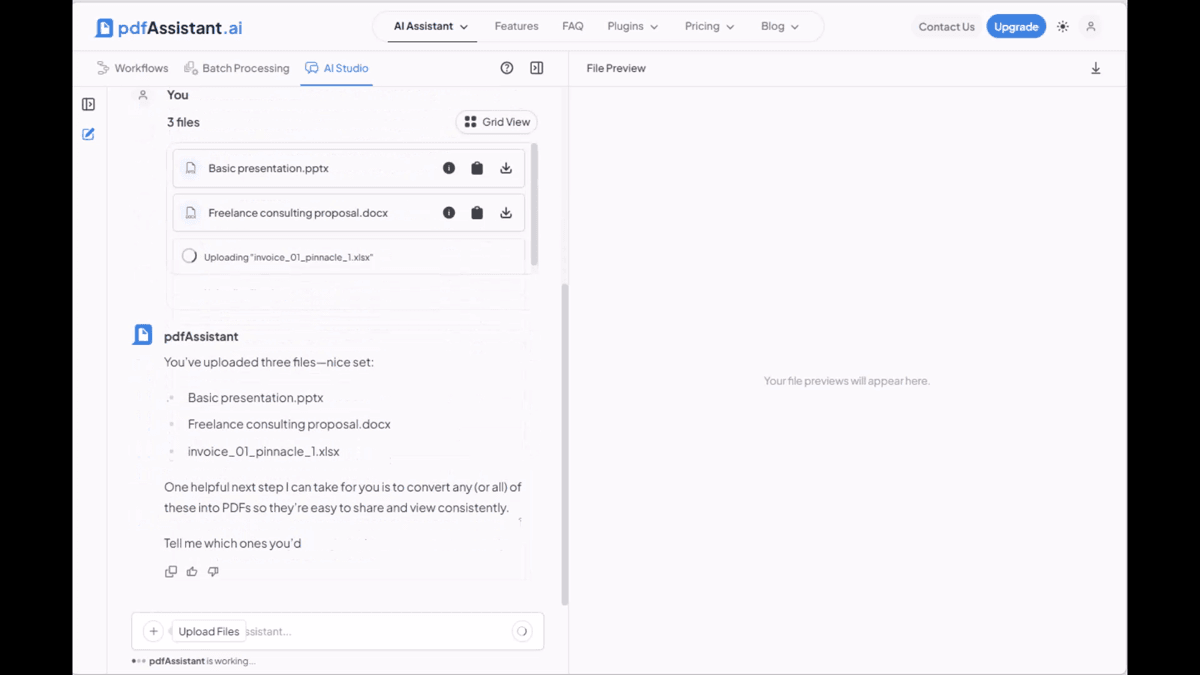 Three mixed file types uploaded. AI Studio acknowledges each file and suggests relevant next steps based on what it sees
Step 3: How Do You Describe a Task to AI Studio?
Type what you need in plain language. There is no required syntax or command structure. A few examples of how real requests look in practice:
| What you type | What AI Studio does |
|---|---|
| "Summarize this contract and pull out the key dates and obligations" | Analysis + extraction. Reads the document, identifies key dates and obligations, and returns a structured summary. |
| "Convert this Word document to PDF/A and add a CONFIDENTIAL watermark" | Multi-step action. Converts to archival-grade PDF/A, applies the watermark, and returns the processed file. |
| "Generate a one-page project brief PDF covering scope, timeline, and budget" | Generative creation. Builds a new formatted PDF from scratch based on your description. No source file needed. |
| "Compress this PDF and encrypt it with a password" | Chained operations. Compresses the file to reduce size, then applies password encryption in a single pass. |
| "Extract all the text from this scanned invoice" | OCR + extraction. Runs optical character recognition on the scanned image and returns the extracted text content. |
Step 4: How Do You Review and Download the Output?
AI Studio displays its response in the conversation, explaining exactly what it did and in what order. The output file appears with a clickable download link and live preview in the right-hand panel. Files are immediately downloadable and are automatically deleted from pdfAssistant servers within 24 hours.
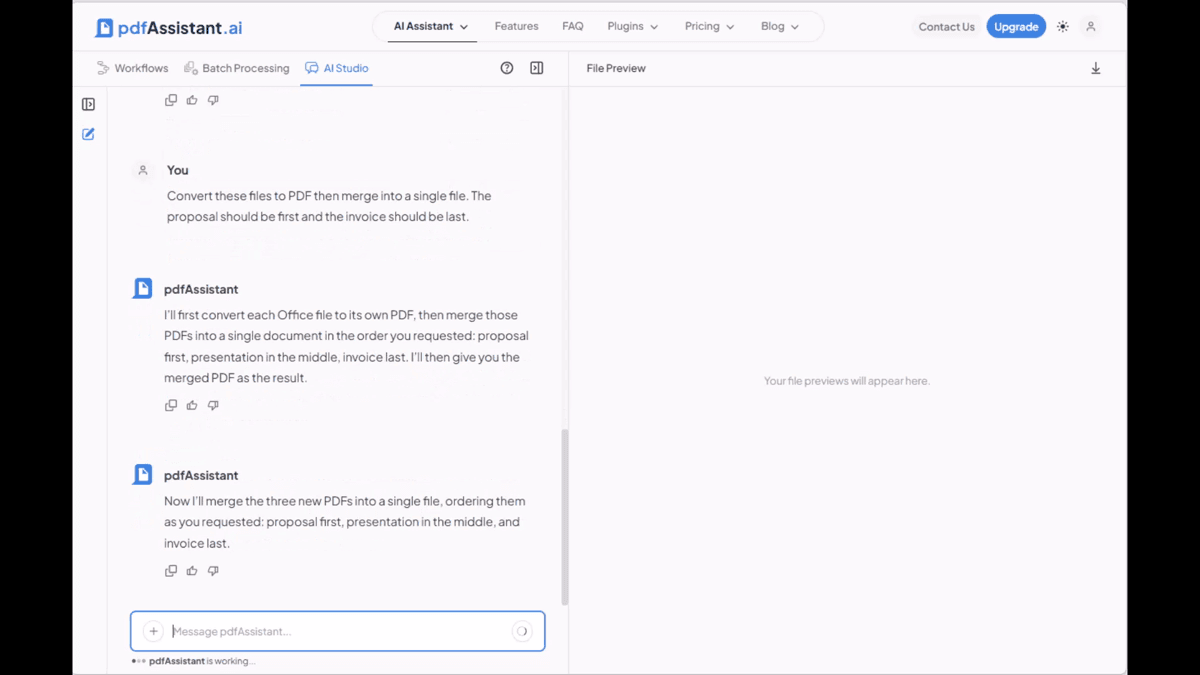 AI Studio confirms the plan before executing. It explains the steps it will take in plain language, in the order you specified
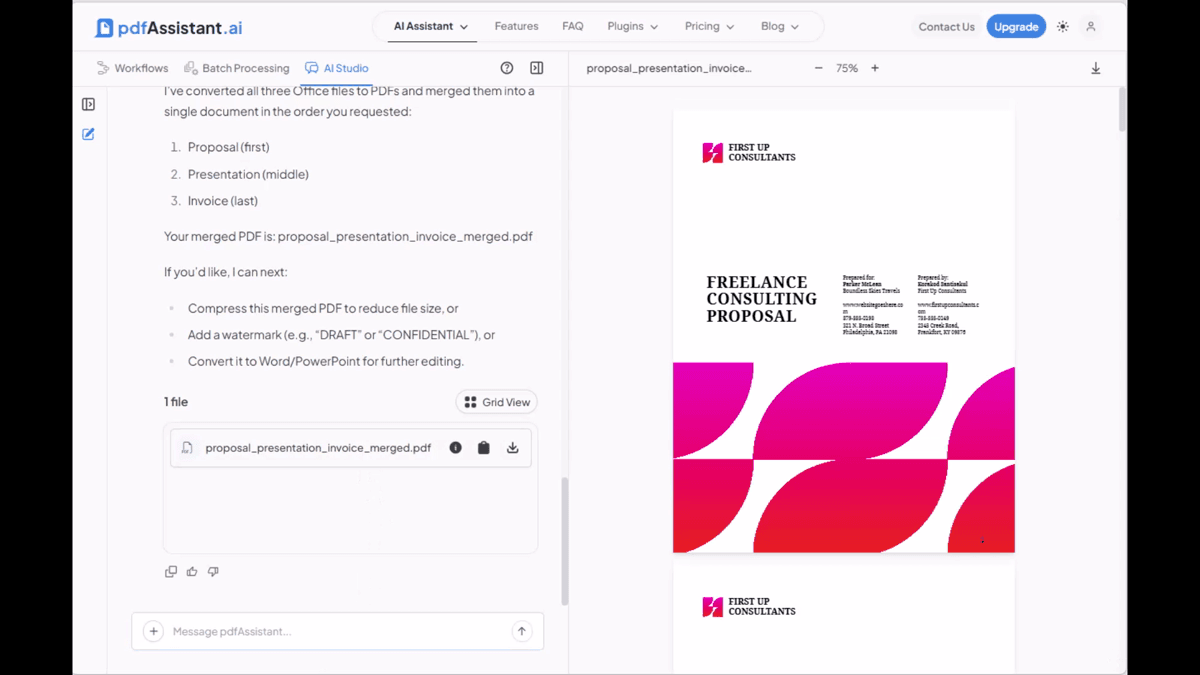 Output confirmed. The merged PDF is named, downloadable, and previewed in the right panel; AI Studio also suggests logical next steps like compression or watermarking
AI Studio's Three Execution Modes
AI Studio operates in three modes simultaneously, depending on what you ask. Most tools in this category support only the first. pdfAssistant supports all three in a single conversational session.
- Inquiry - Extract information and gain insights from your documents. Summarize contracts, pull key terms, find specific clauses, translate content, and answer questions about what a document says.
- Action - Execute structural modifications based on your instructions. Convert, compress, watermark, encrypt, redact, merge, split, OCR, and sign. Multiple operations can be chained in a single request.
- Generation - Create entirely new documents from scratch. Describe what you need and AI Studio produces a formatted PDF, Word document, spreadsheet, or presentation. No source file required.
What Can AI Studio Do? The Full Operation Library
AI Studio provides access to 40+ document operations, the same library available in Workflows, with no configuration required. Operations can be combined in a single natural language request.
- Summarize PDFs
- Extract text and key terms
- Translate documents
- Generate new PDFs from scratch
- Convert to Word, Excel, PowerPoint
- Convert to PDF/A (archival)
- Convert to PDF/X (print-ready)
- Convert to Markdown
- Convert images to PDF
- Compress PDFs
- Merge PDFs
- Split PDFs
- Watermark PDFs
- Encrypt with password
- Redact sensitive content
- OCR scanned documents
- Digitally sign PDFs
- Flatten forms, layers, annotations
- Add images to PDFs
- Linearize for web viewing
Security in AI Studio
AI Studio is secure by default. No configuration or opt-in is required to protect your documents.
- 24-hour auto-deletion: All uploaded files and generated outputs are permanently deleted from pdfAssistant servers within 24 hours of processing. No persistent document storage.
- No third-party AI uploads: Your documents are processed within the pdfAssistant platform only. Files are not sent to external AI services for processing.
- No AI training: Documents processed through AI Studio are never used to train the underlying AI models. Your content stays yours.
- Encryption in transit and at rest: All document transfers and stored files use industry-standard cryptographic encryption protocols
AI Studio vs. Workflows vs. Batch Processing: When to Use Each
AI Studio, Workflows, and Batch Processing serve different scales of work. The right choice depends on whether the task is recurring and how many files are involved.
| Scenario | AI Studio | Workflows | Batch Processing |
|---|---|---|---|
| One-off task on a single document | ✓ Ideal | - | - |
| Exploring what the platform can do | ✓ Ideal | - | - |
| Generating a new document from a description | ✓ Ideal | - | - |
| Analyzing or extracting insights from a document | ✓ Ideal | - | - |
| Recurring task you do weekly or monthly | - | ✓ Ideal - build once, reuse always | - |
| Processing 5+ files with identical steps | - | ✓ Run via Workflows | ✓ Ideal at any volume |
| High-volume archive processing (100s-1000s of files) | - | - | ✓ Built for this |
When to move from AI Studio to Workflows
If you find yourself running the same task in AI Studio more than once, it is a candidate for a Workflow. Build it once, save it, and run it on any document without retyping the instructions. Learn how Workflows work.
Frequently Asked Questions About AI Studio
What is pdfAssistant AI Studio?
AI Studio is pdfAssistant's conversational interface for immediate, one-off document tasks. Describe what you need in plain language: converting, compressing, summarizing, generating, or modifying PDFs. The AI handles the entire process without menus, configuration, or technical setup.
What can pdfAssistant AI Studio do?
AI Studio provides access to 40+ document operations: analysis and insight extraction, multi-format conversion (Word, Excel, PowerPoint, Markdown, PDF/A, PDF/X), compression, watermarking, encryption, OCR, redaction, splitting, merging, digital signing, and generative document creation from scratch. Multiple operations can be combined in a single natural language request.
Is pdfAssistant AI Studio secure?
Yes. Files are automatically deleted from pdfAssistant servers within 24 hours of processing. Documents are never uploaded to third-party AI services and are never used to train the underlying AI models. All data is encrypted in transit and at rest.
Can pdfAssistant AI Studio generate new PDFs from scratch?
Yes. AI Studio can generate new PDFs, Word documents, spreadsheets, and presentations from scratch by describing what you need. No source file is required. This includes drafting structured documents, summaries, project briefs, and any other formatted content.
What is the difference between AI Studio and Workflows?
AI Studio is for one-off, single-session tasks. Workflows save the processing logic so you can run the same multi-step automation repeatedly without rebuilding it. Any task you find yourself repeating in AI Studio is a candidate for a saved Workflow.
Does AI Studio use my documents to train AI?
No. Documents processed through AI Studio are never used to train the underlying AI models. Files are automatically and permanently deleted from pdfAssistant servers within 24 hours of processing.
Can I combine multiple operations in a single AI Studio request?
Yes. AI Studio can chain multiple operations from a single natural language instruction. For example: "Convert this Word document to PDF/A, add a CONFIDENTIAL watermark, and compress the output" executes three operations in sequence from one request.


Topics