
Jun 30, 2026
How pdfAssistant Workflows Work: Build Once, Run Forever
How to build, save, and scale pdfAssistant Workflows in plain language.
Every recurring document task you handle manually is a candidate for a pdfAssistant Workflow. Convert incoming reports to PDF/A. Merge and watermark monthly invoices. Compress and encrypt contract batches. These are not one-time tasks — they happen weekly, monthly, every time a new project kicks off. Doing them by hand, every time, is exactly the problem Workflows are designed to eliminate.
This guide covers the complete Workflow and Batch Processing system: what it does, how to build one using plain language, and the six most common automation recipes you can deploy today.
What is a pdfAssistant Workflow?
A Workflow is a saved, multi-step document automation sequence built by describing what you need in plain language. Build it once, run it on any document — or apply it to hundreds of files simultaneously via Batch Processing.
Key Facts
- Built in plain language— describe your automation; the AI assembles the steps
- No step limit— chain any number of the platform's 100+ document actions
- Save and reuse— Workflows are stored and can be run on any document at any time
- Manually triggered— run on demand; scheduling requires pdfRest
- Error handling— a Workflow will not complete if a step fails; errors are surfaced explicitly
- Batch-ready— any saved Workflow can be applied to hundreds or thousands of files via Batch Processing
- No templates— every Workflow is built from scratch based on your specific needs
How the Workflow Engine Works
pdfAssistant Workflows live in the Workflows tab — a dedicated space separate from the AI Studio chat interface. You don't configure steps in a visual drag-and-drop editor; instead, you describe your automation in plain language and the AI assembles the step sequence for you.
Step 1: Do You Start a New Workflow in pdfAssistant?
Navigate to the Workflows tab in pdfAssistant. Your saved Workflows appear in the left panel. Click Create a Workflow to open a new session. The AI Assistant greets you and asks what you'd like to automate.
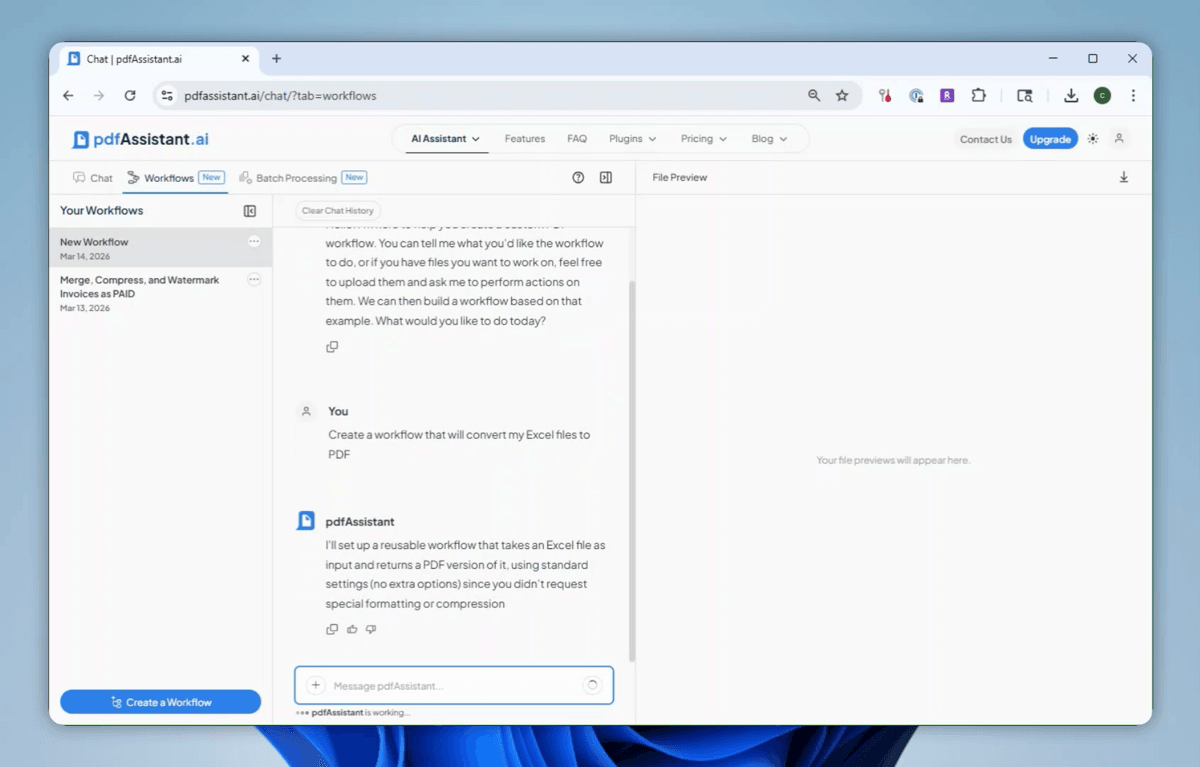 The Workflows tab — saved workflows appear in the left panel; the AI assembles new workflows from your description
Step 2: How Do You Describe a Workflow to the AI?
Type what you want the Workflow to do. No syntax, no configuration forms. For example: "Create a workflow that will convert my Excel files to PDF." The AI interprets your request, determines the required steps, and builds the Workflow automatically.
You can be as specific or as open as you like. If you don't specify settings like compression level, watermark opacity, or output naming conventions, the AI applies standard defaults and explains its choices. You can then refine using the Modify Workflow button.
Step 3: How Do You Review and Modify a Workflow Before Saving?
Once built, pdfAssistant presents a plain-language summary of exactly what the Workflow does, what it accepts as input, and how to use it. The summary includes:
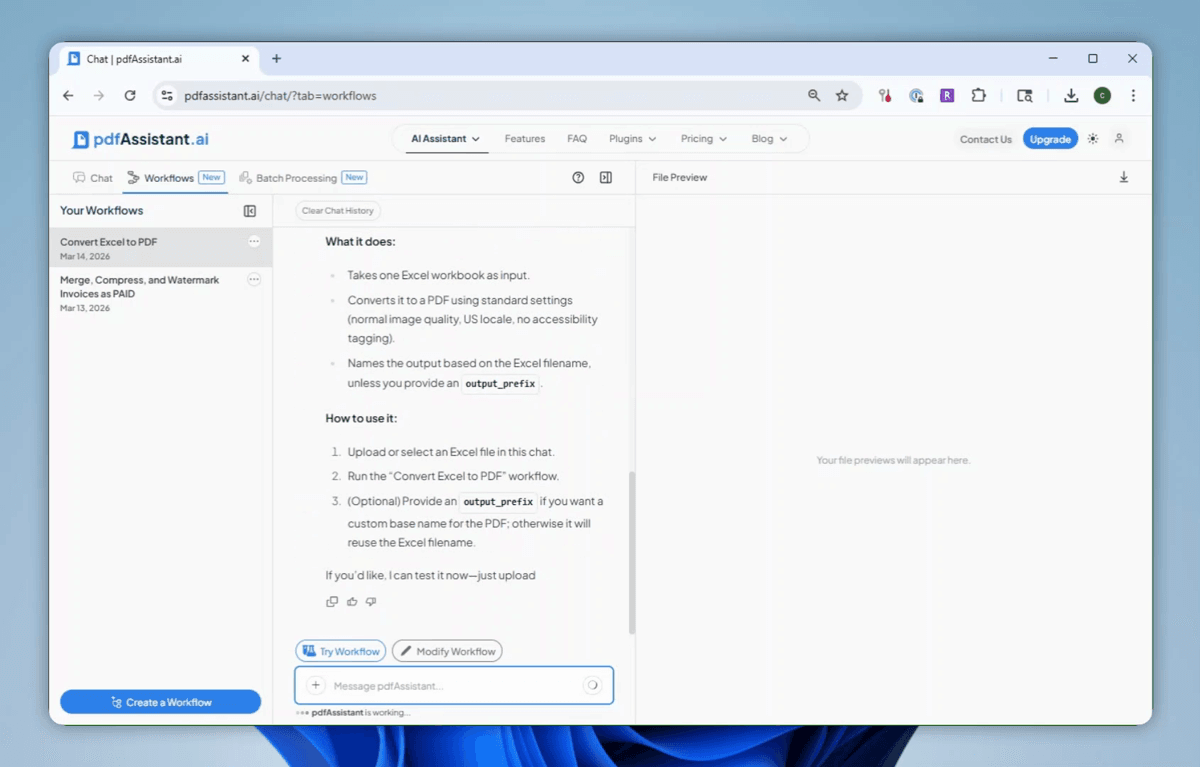 After building — the AI summarizes what the Workflow does, its inputs, and provides Try Workflow / Modify Workflow controls
Two action buttons appear at the bottom of every Workflow session:
1. Try Workflow: Test the Workflow immediately by uploading a file. pdfAssistant runs the automation and shows you the output before you commit to using it at scale.
2. Modify Workflow: Adjust any step, parameter, or output setting by describing the change in plain language. The AI updates the Workflow accordingly.
Step 4: How Do You Test a Workflow and Confirm the Output?
Upload a test file, click Try Workflow, and review the result. The Workflow processes the file and displays the output — including a clickable download link and a file preview — directly in the Workflow session. Confirm the output is correct before saving.
Output confirmation — the AI labels the input and output clearly; the result file is immediately downloadable or passable to Batch Processing
The Workflow is now saved under its auto-generated name (visible in the left panel, e.g. "Convert Excel to PDF"). It is available for reuse at any time — there is no limit on the number of times a saved Workflow can be run, and no limit on the number of steps it may contain.
Workflow Use Cases
The following use cases represent the most common Workflow patterns across industries. Each table shows the input, the action chain, and the expected output — copy the prompt shown in each header directly into the pdfAssistant Workflow builder to create it.
To build any of these, open the Workflows tab, click Create a Workflow, and describe what you need. The AI assembles the steps automatically.
Use Case 1: Invoice Archive — Merge, Compress, and Watermark as PAID
Prompt: "Create a workflow that merges multiple invoice PDFs into one, compresses the result, and adds a diagonal PAID watermark."
Merge, Compress, and Watermark Invoices as PAID Finance / Accounting
| Input | Action Chain | Output |
|---|---|---|
| Multiple invoice PDF files | → Merge PDFs into single document | → Single merged PDF |
| Single merged PDF | → Compress to reduce file size | → Compressed PDF |
| Compressed PDF | → Apply diagonal "PAID" watermark | → Final watermarked archive PDF |
Use Case 2: Document Standardization — Convert, Watermark, and Secure for Distribution
Prompt: "Create a workflow that converts Word documents to PDF, adds an INTERNAL USE ONLY watermark, and encrypts the output."
Secure Internal Document Distribution Operations / HR / Legal
| Input | Action Chain | Output |
|---|---|---|
| Word document (.docx) | → Convert Word to PDF | → Standard PDF |
| Standard PDF | → Apply "INTERNAL USE ONLY" watermark (diagonal) | → Labeled PDF |
| Labeled PDF | → Encrypt with password protection | → Encrypted, watermarked PDF ready for distribution |
Use Case 3: Scanned Document Pipeline — OCR, Convert to PDF/A, and Encrypt
Prompt: "Create a workflow that runs OCR on scanned PDFs, converts them to PDF/A for archiving, then encrypts the result."
Scanned Document Compliance Archive Legal / Medical / Compliance
| Input | Action Chain | Output |
|---|---|---|
| Scanned PDF (image-only) | → OCR to extract searchable text layer | → Searchable PDF |
| Searchable PDF | → Convert to PDF/A (archival standard) | → Compliance-grade archival PDF |
| Compliance-grade archival PDF | → Apply password encryption | → Encrypted, searchable, archival PDF |
Use Case 4: Spreadsheet to PDF Conversion — Excel Batch to Standardized PDF
Prompt: "Create a workflow that converts Excel files to PDF using standard settings."
Convert Excel to PDF Finance / Reporting / Operations
| Input | Action Chain | Output |
|---|---|---|
| Excel workbook (.xlsx) | → Convert to PDF (standard settings, US locale) | → PDF named from source filename |
Use Case 5: Print-Ready Export — Convert and Flatten to PDF/X
Prompt: "Create a workflow that converts documents to PDF/X for professional printing, then flattens all transparencies."
Print-Ready PDF/X Export Marketing / Design / Publishing
| Input | Action Chain | Output |
|---|---|---|
| PDF or Word document | → Convert to PDF/X (print-ready standard) | → PDF/X file |
| PDF/X file | → Flatten all transparencies | → Press-ready PDF/X with no transparency layers |
Use Case 6: Redaction and Compliance — Redact Sensitive Data, Apply Restrictions, and Archive
Prompt: "Create a workflow that redacts sensitive information from PDFs, applies print and copy restrictions, then converts to PDF/A."
Redact, Restrict, and Archive Legal / Healthcare / Financial Services
| Input | Action Chain | Output |
|---|---|---|
| Sensitive PDF document | → Redact specified sensitive content | → Redacted PDF |
| Redacted PDF | → Apply print and copy restrictions | → Restricted PDF |
| Restricted PDF | → Convert to PDF/A for long-term archiving | → Compliant, redacted, restricted archival PDF |
Workflows vs. AI Studio: When to Use Each
Workflows and AI Studio are complementary — not competing — tools. The right choice depends on whether the task is recurring and whether you need to process more than one file at a time.
| Scenario | Use AI Studio | Use Workflows + Batch |
|---|---|---|
| One-off task on a single document | ✓ Ideal | — |
| Recurring task you do weekly or monthly | — | ✓ Ideal — build once, reuse always |
| Processing 5+ files with identical steps | — | ✓ Ideal — Batch handles any volume |
| Exploring what the platform can do | ✓ Ideal | — |
| Enforcing consistent processing standards across a team | — | ✓ Ideal — saved Workflows guarantee identical output |
| Generating a new document from conversation | ✓ Ideal | — |
| High-volume archive processing (100s–1000s of files) | — | ✓ Ideal — Batch Processing is built for this |
Frequently Asked Questions About pdfAssistant Workflows
What is a pdfAssistant Workflow?
A pdfAssistant Workflow is a saved, multi-step document automation sequence built by describing what you need in plain language. Build it once and run it on any document, or apply it to hundreds of files simultaneously via Batch Processing.
How do you create a Workflow in pdfAssistant?
Open the Workflows tab, click Create a Workflow, and describe what you want to automate in plain language. The AI assembles the step sequence automatically. Use Try Workflow to test it or Modify Workflow to adjust any step before saving.
Is there a limit on the number of steps in a Workflow?
No. There is no limit on the number of steps a pdfAssistant Workflow can contain. You can chain any combination of the platform's 100+ document actions into a single saved Workflow.
Can Workflows be scheduled or triggered automatically?
Workflows in pdfAssistant are manually triggered. Automated scheduling and API-triggered execution are available via pdfRest, the underlying API infrastructure that powers pdfAssistant.
What happens if a step fails during a Workflow?
A Workflow will not complete if an error occurs during any step. The error is surfaced explicitly so you can identify and resolve the issue. Workflows do not silently skip failed steps.
What is the difference between Workflows and AI Studio?
AI Studio is for ad-hoc, single-session document tasks handled through conversational input. Workflows are for recurring tasks — they save the processing logic so you can run the same multi-step automation repeatedly without rebuilding it. Any Workflow can also be scaled to hundreds or thousands of files via Batch Processing.
Are there pre-built or template Workflows available?
No. Every pdfAssistant Workflow is built from scratch based on your specific needs. There are no pre-built or template Workflows — the AI assembles the step sequence from your plain language description.
Ready to scale your Workflows?
Once you've built and saved a Workflow, you can apply it to hundreds or thousands of files at once using Batch Processing — no manual intervention required per file. Learn how Batch Processing works.


Topics