

Jul 1, 2026
How pdfAssistant Batch Processing Scales Workflows to Thousands of Files
Apply a saved Workflow to your entire document library at once.
Every document task you've already automated with a pdfAssistant Workflow is ready to scale. Process a single invoice or ten thousand. Batch Processing takes what you've built once in Workflows and applies it to your entire file library without touching each document individually.
This guide covers how Batch Processing works, how to run your first batch job, and the six most common use cases you can execute at scale today.
What is pdfAssistant Batch Processing?
Batch Processing is the scaling layer of pdfAssistant. Designed for maximum efficiency with high volumes of documents, it lets you select a saved Workflow and apply it to hundreds or thousands of files simultaneously: converting, compressing, securing, watermarking, or archiving entire document collections in minutes rather than hours.
Key Facts
- Requires a saved Workflow to define processing logic — no standalone use
- Built to handle large document volumes— designed for hundreds of files per job
- Manually triggered— jobs are queued and run on demand, not scheduled
- Error surfacing— failed files are flagged individually; the batch does not silently skip
- Output Prefix— optional custom naming for all output files in a batch
- Multiple queued jobs— run several batch tasks simultaneously from the Task Queue
Before you start Batch Processing runs on top of Workflows. Every batch job requires a saved Workflow to define the processing logic. If you haven't built one yet, learn how Workflows work first.
How Batch Processing Works
Batch Processing lives in its own dedicated tab, separate from the AI Studio chat interface and the Workflows tab. The interface is structured around a Task Queue on the left and an Output Files panel on the right. Adding a batch job takes four steps.
Step 1: How Do You Select a Workflow for Batch Processing?
Click Add Tasks to open the job configuration panel. A three-step progress bar at the top tracks your position: 1. Select a Workflow, 2. Configure Inputs, 3. Review.
Choose from your saved Workflows. The panel displays the Workflow name and a plain-language description of exactly what it does, so you can confirm the right automation is selected before uploading any files.
Step 2: How Do You Upload and Configure Files for a Batch Job?
Upload your files directly from your computer or pull from files already in pdfAssistant. Files are listed with their status (Ready or Uploading), filename, size, type, and last-modified date. You can reorder files by dragging the handle icon on the left. This is useful when merging operations depend on file sequence.
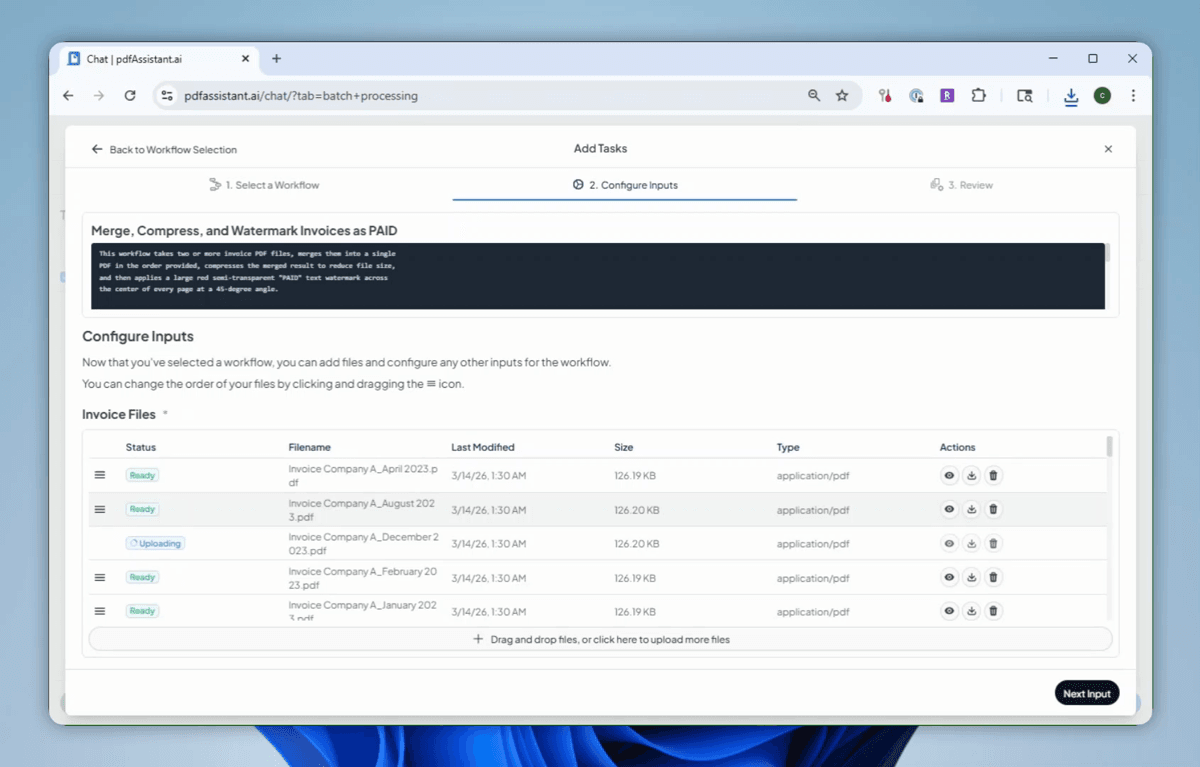 Configure Inputs. Upload files directly or pull from your pdfAssistant file history. Drag to reorder when sequence matters.
An optional Output Prefix field on the following screen lets you set a custom base name for all output files generated by the batch, keeping your output library organized without manual renaming.
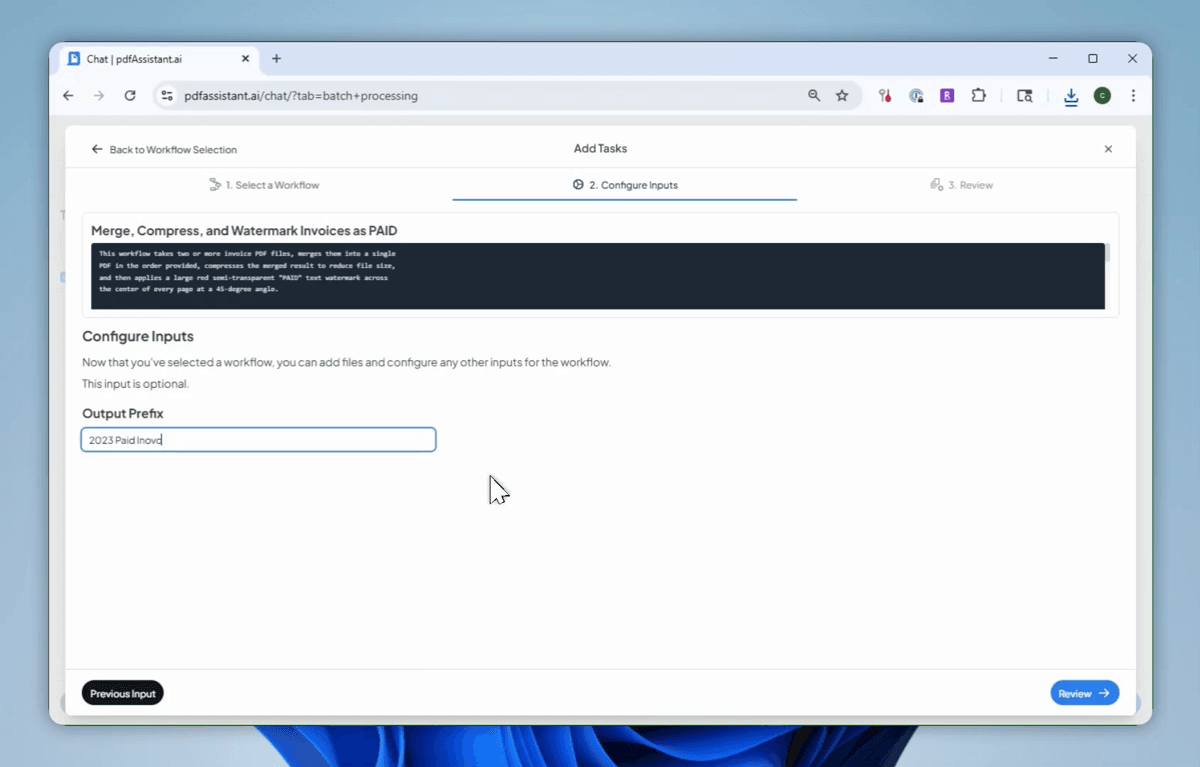 Output Prefix (optional). Set a custom base name for all output files generated by the batch job.
Step 3: How Do You Review and Queue a Batch Job?
The Review screen gives you a complete manifest of the job: every input file listed with its filename, size, type, and last-modified timestamp. Confirm the full file list is correct, then click Add to Task Queue.
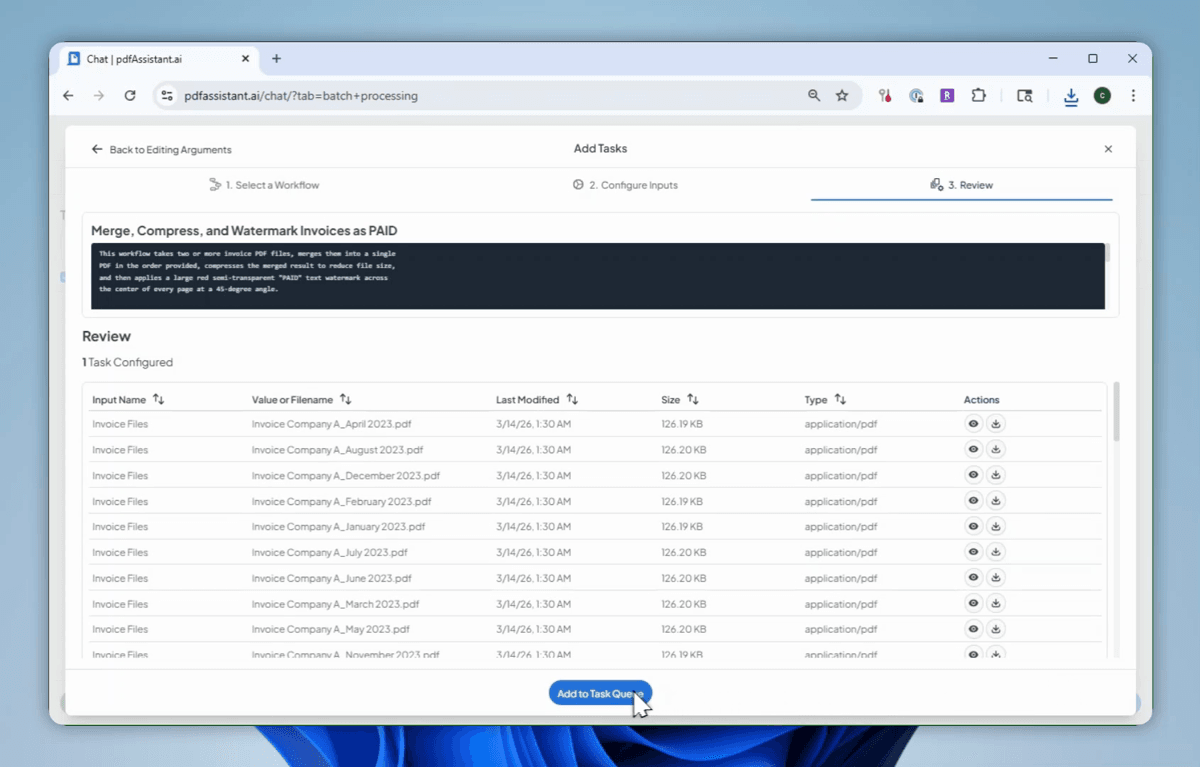 Review. A full manifest of every file before the job is queued. Nothing runs until you confirm.
The job enters the Task Queue with a status of Ready. You can queue multiple batch jobs simultaneously. Each one sits in the queue until you're ready to run.
Step 4: How Do You Run a Batch Job and Download the Results?
From the Task Queue, click Run All Ready Tasks. The processing engine applies your Workflow to every file in the batch simultaneously. As files complete, they appear in the Output Files panel on the right, marked Ready for download.
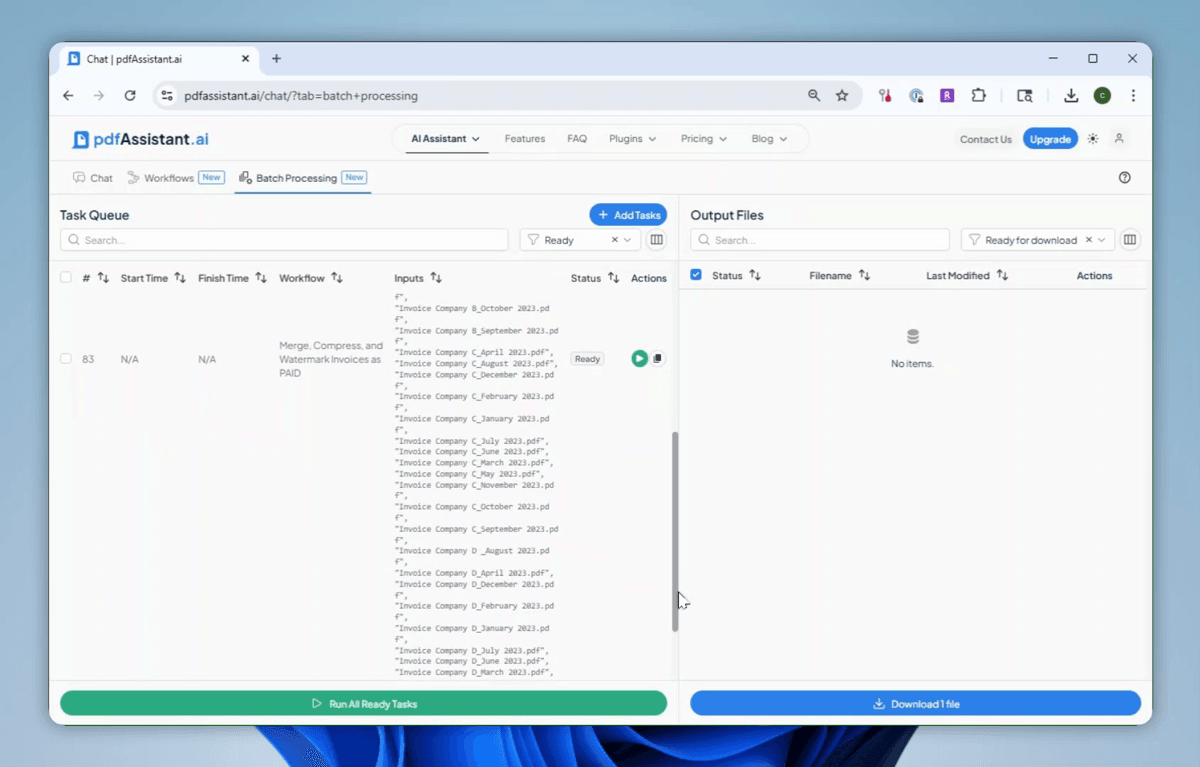 The Task Queue. A single batch task containing all files, ready to execute against the saved Workflow in one click.
Download output files individually or select multiple for bulk download. If a file encounters an error during processing, the job surfaces the error without silently skipping. Every file is either processed correctly or flagged for your review.
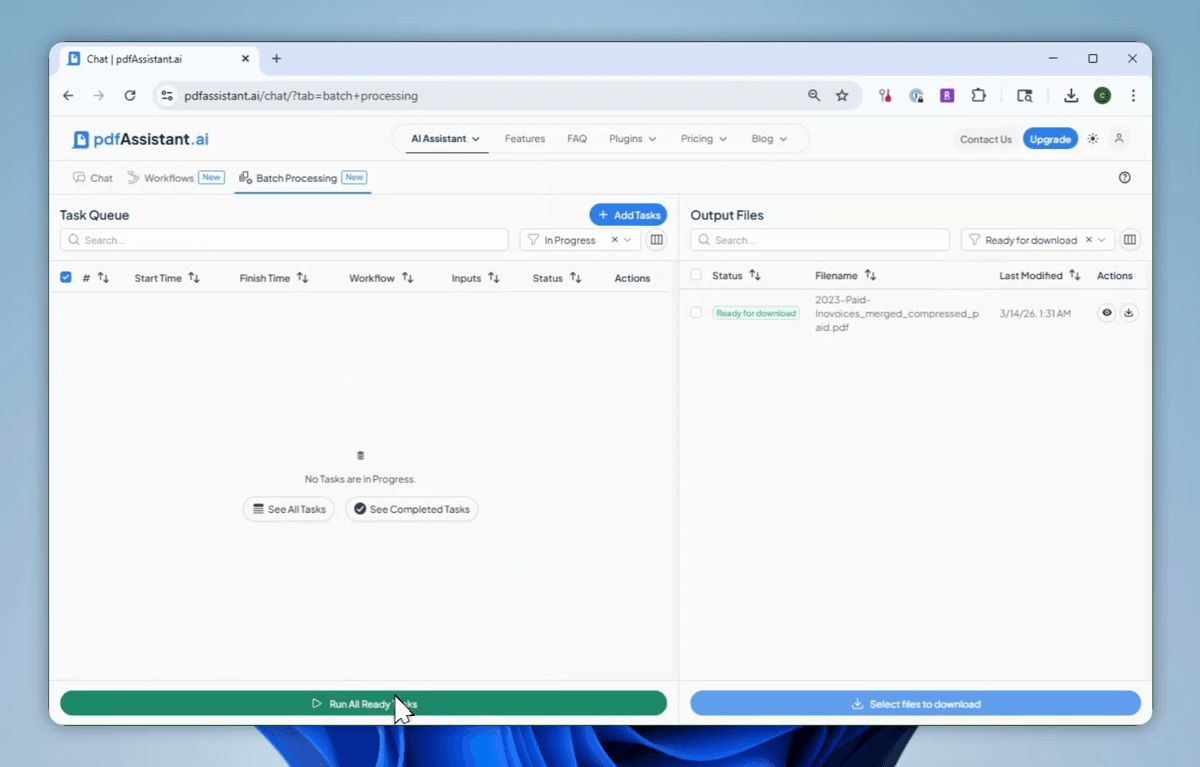 Completed. Output files appear in the right panel marked Ready for download. The entire batch processed without manual intervention per file.
Batch Processing Use Cases
The following use cases represent the most common Batch Processing patterns across industries. Each maps directly to a Workflow you can build using the prompt shown, then apply to any volume of files via Batch Processing.
To run any of these at scale: build the Workflow first using the prompt shown, then open Batch Processing, select that Workflow, upload your files, and run.
Use Case 1: Invoice Archive - Merge, Compress, and Watermark as PAID
Workflow prompt: "Create a workflow that merges multiple invoice PDFs into one, compresses the result, and adds a diagonal PAID watermark."
Merge, Compress, and Watermark Invoices as PAID | Finance / Accounting
| Input | Action Chain | Output | ||
|---|---|---|---|---|
| Multiple invoice PDF files | → | Merge PDFs into single document | → | Single merged PDF |
| → | Compress to reduce file size | → | Compressed PDF | |
| → | Apply diagonal "PAID" watermark | → | Final watermarked archive PDF |
Use Case 2: Document Standardization - Convert, Watermark, and Secure for Distribution
Workflow prompt: "Create a workflow that converts Word documents to PDF, adds an INTERNAL USE ONLY watermark, and encrypts the output."
Secure Internal Document Distribution | Operations / HR / Legal
| Input | Action Chain | Output | ||
|---|---|---|---|---|
| Word document (.docx) | → | Convert Word to PDF | → | Standard PDF |
| → | Apply "INTERNAL USE ONLY" watermark (diagonal) | → | Labeled PDF | |
| → | Encrypt with password protection | → | Encrypted, watermarked PDF ready for distribution |
Use Case 3: Scanned Document Pipeline - OCR, Convert to PDF/A, and Encrypt
Workflow prompt: "Create a workflow that runs OCR on scanned PDFs, converts them to PDF/A for archiving, then encrypts the result."
Scanned Document Compliance Archive | Legal / Medical / Compliance
| Input | Action Chain | Output | ||
|---|---|---|---|---|
| Scanned PDF (image-only) | → | OCR to extract searchable text layer | → | Searchable PDF |
| → | Convert to PDF/A (archival standard) | → | Compliance-grade archival PDF | |
| → | Apply password encryption | → | Encrypted, searchable, archival PDF |
Security & Compliance: pdfAssistant is SOC 2 Type 2 certified, meaning our security controls for data handling, availability, and confidentiality have been independently audited and verified. This makes pdfAssistant suitable for legal, financial, and general compliance document workflows. Please note: pdfAssistant is not HIPAA compliant. Organizations processing protected health information (PHI) should consult their compliance team before using this workflow for medical records or patient documentation.
Use Case 4: Spreadsheet to PDF Conversion - Excel Batch to Standardized PDF
Workflow prompt: "Create a workflow that converts Excel files to PDF using standard settings."
Convert Excel to PDF | Finance / Reporting / Operations
| Input | Action Chain | Output | ||
|---|---|---|---|---|
| Excel workbook (.xlsx) | → | Convert to PDF (standard settings, US locale) | → | PDF named from source filename |
Use Case 5: Print-Ready Export - Convert and Flatten to PDF/X
Workflow prompt: "Create a workflow that converts documents to PDF/X for professional printing, then flattens all transparencies."
Print-Ready PDF/X Export | Marketing / Design / Publishing
| Input | Action Chain | Output | ||
|---|---|---|---|---|
| PDF or Word document | → | Convert to PDF/X (print-ready standard) | → | PDF/X file |
| → | Flatten all transparencies | → | Press-ready PDF/X with no transparency layers |
Use Case 6: Redaction and Compliance - Redact Sensitive Data, Apply Restrictions, and Archive
Workflow prompt: "Create a workflow that redacts sensitive information from PDFs, applies print and copy restrictions, then converts to PDF/A."
Redact, Restrict, and Archive | Legal / Healthcare / Financial Services
| Input | Action Chain | Output | ||
|---|---|---|---|---|
| Sensitive PDF document | → | Redact specified sensitive content | → | Redacted PDF |
| → | Apply print and copy restrictions | → | Restricted PDF | |
| → | Convert to PDF/A for long-term archiving | → | Compliant, redacted, restricted archival PDF |
Batch Processing vs. Workflows vs. AI Studio: When to Use Each
Batch Processing, Workflows, and AI Studio are three layers of the same platform, each suited to a different scale of work.
| Scenario | Use AI Studio | Use Workflows | Use Batch Processing |
|---|---|---|---|
| One-off task on a single document | ✓ Ideal | - | - |
| Recurring task you do weekly or monthly | - | ✓ Ideal - build once, reuse always | - |
| Processing 5+ files with identical steps | - | ✓ Run via Workflows | ✓ Ideal at any volume |
| Enforcing consistent processing standards across a team | - | ✓ Saved Workflows guarantee identical output | ✓ Apply those standards at scale |
| High-volume archive processing (100s–1000s of files) | - | - | ✓ Built for this |
| Exploring what the platform can do | ✓ Ideal | - | - |
| Generating a new document from conversation | ✓ Ideal | - | - |
New to Workflows?
Batch Processing requires a saved Workflow to run. If you haven't built one yet, learn how Workflows work →
Want to understand the full platform?
See how AI Studio, Workflows, and Batch Processing fit together in the pdfAssistant platform overview →


Topics